






How to Use ADB to Fix Boot Issues in Android Phones
Fix Boot Issues in Android Phones with ADB:
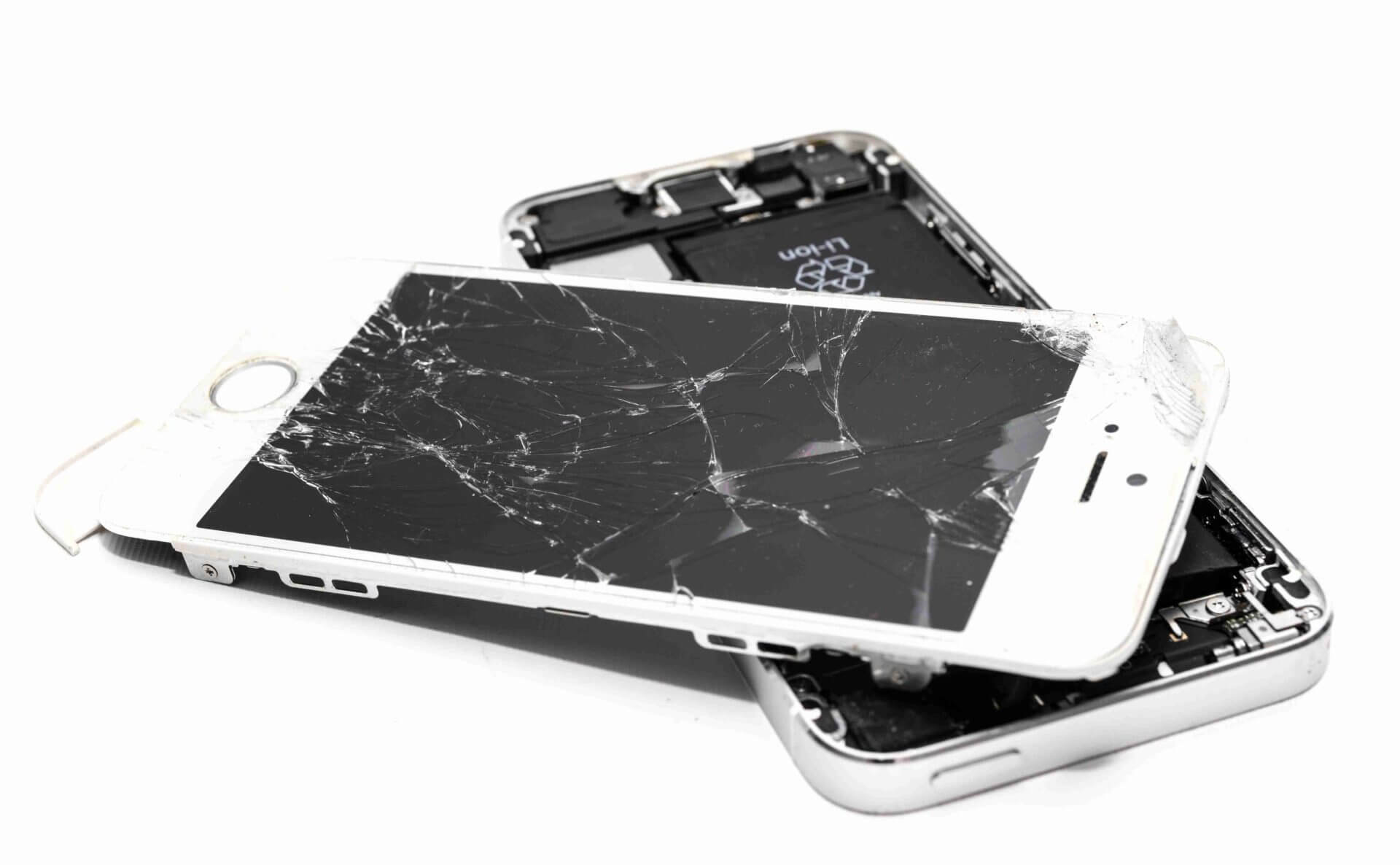
If your Android phone is stuck in a boot loop, freezes on the startup screen, or refuses to boot altogether, ADB (Android Debug Bridge) can be your rescue tool.
At Virani Telecom, we deal with hundreds of boot-related issues every month, and ADB is often one of the most powerful solutions — especially when you don’t want to lose data or do a full factory reset.
In this article, we’ll explain step-by-step how to use ADB to fix boot issues in Android phones, even if you’re not a developer or a tech expert.
🔧 What Is ADB?
ADB (Android Debug Bridge) is a command-line tool that allows your computer to communicate with your Android device. It’s part of the Android SDK (Software Development Kit) and is widely used by developers and technicians.
It can be used to:
- Send terminal commands
- Reboot into recovery or bootloader
- Pull system logs
- Sideload firmware or OTA updates
- Push files directly to the system
🚨 Common Boot Issues ADB Can Fix
- Boot Loop
- Stuck on Android logo
- Recovery loop
- Black screen after boot
- Incomplete system updates
🧰 What You Need Before Starting
- A Windows, macOS, or Linux computer
- A USB cable
- The Android SDK Platform Tools
- A phone with USB Debugging enabled
- Battery charged at least 50%
If USB Debugging was not enabled before the issue occurred, ADB may not work unless the phone is in ADB sideload mode or Custom Recovery (like TWRP).
✅ Step-by-Step: How to Use ADB to Fix Boot Issues
1: Install ADB on Your Computer
- Download ADB Platform Tools from the official Android site:
👉 https://developer.android.com/tools/releases/platform-tools - Extract the ZIP file to your desktop or any folder.
2: Connect Your Android Device
- Power off your device (if stuck, long press power + volume down to force reboot).
- Boot into Recovery Mode or Fastboot Mode depending on the phone model.
- Connect your phone to the PC via USB.
3: Open the Command Prompt / Terminal
- Navigate to the folder where you extracted the Platform Tools.
- In the address bar, type
cmdand press Enter.
4: Check Device Connection
adb devicesYou should see your device listed. If it says unauthorized, you need to allow USB Debugging on the phone screen.
5: Use ADB Commands to Fix the Issue
Reboot the Device Normally
adb rebootReboot into Recovery Mode
adb reboot recoverySideload a Firmware Update
adb sideload filename.zip(Great for fixing broken system updates without factory reset.)
Clear Cache Partition
adb shellThen type:
wipe cachePull Logs to Diagnose the Issue
adb logcat > bootlog.txt⚙️ When to Seek Professional Help?
If none of these ADB commands work or your device isn’t recognized, it may have:
- Corrupt partitions
- Damaged bootloader
- Faulty hardware
📍 In such cases, visit Virani Telecom – the Best Mobile Service Center in Mumbai. Our expert technicians use advanced flashing tools and hardware diagnostics to fix deep boot-level issues without losing data.
🙌 Final Thoughts
ADB is a powerful tool that can save your phone from a complete reset — but it must be used carefully. With the right steps, many common boot issues can be fixed at home.
If you’re ever unsure or need help, Virani Telecom is just a call away. With our certified mobile repair technicians and state-of-the-art tools, we’re here to restore your phone back to life — fast and safe.

Chetan Virani
May 28, 2025Wow great superb 👏 performance excellent 👌👍