








Learn How to Hard Reset a Phone: Step-by-Step Practical Guide for iPhone and Android
Hard Reset a Phone: Have you ever picked up your phone and found that it is completely frozen? Maybe the screen is not responding, apps keep crashing, or the phone refuses to start normally.
In situations like these, knowing how to hard reset a phone can save you a lot of frustration.
A hard reset can mean different things depending on the problem. Sometimes it simply means forcing a frozen phone to restart. In other situations, people use the term hard reset when they mean a factory reset, which removes personal data and returns the phone to its original software state.
This guide from Virani Telecom explains both methods in simple English. Whether you use an iPhone or Android phone, you will learn what to do, when to use each method, what tools you may need, and what precautions you should take.
Important: A force restart normally does not erase your data. A factory reset does. Always understand which reset you are performing before continuing.
What Does Hard Reset a Phone Mean?
The phrase hard reset a phone is commonly used for two different processes:
1. Force Restart
A force restart is useful when your phone:
- Is frozen
- Has an unresponsive touchscreen
- Is stuck on a logo
- Is not responding to buttons normally
- Has an app or system crash
- Has a temporarily black screen
A force restart usually does not delete your photos, contacts, apps, or other personal files.
2. Factory Reset
A factory reset is much more serious.
It removes data stored on the phone and returns the device to its factory software condition.
It may remove:
- Photos and videos
- Downloaded apps
- Messages
- Personal settings
- Saved accounts
- Locally stored documents
- Other user data
Therefore, you should use a factory reset only when you understand the consequences.
When Should You Hard Reset a Phone?
A reset may be useful when basic troubleshooting does not solve the problem.
Common situations include:
- Phone is completely frozen
- Touchscreen stops responding
- Device repeatedly crashes
- Phone gets stuck during startup
- System becomes extremely slow
- Certain software problems continue after restarting
- You are preparing the phone for another owner
- You need to erase personal information before selling the device
However, a reset is not always the first solution.
If the phone is working normally, start with simpler troubleshooting such as restarting the device, closing problematic apps, checking available storage, or installing pending software updates.
Before You Hard Reset Your Phone: Important Precautions
Before performing a factory reset, take a few minutes to protect your information.
Back Up Your Important Data
Make sure important information is backed up where possible.
Check for:
- Photos
- Videos
- Contacts
- WhatsApp or other messaging backups
- Documents
- Notes
- Calendar information
- Passwords
- Two-factor authentication information
Check Your Battery
Ideally, keep your phone sufficiently charged before starting a reset.
If possible, connect it to a charger during a lengthy recovery or reset process.
Know Your Account Password
After resetting some devices, you may need to sign in again with the previously associated Apple Account or Google Account.
This is particularly important when buying or selling a used phone.
Remove Your SIM or Memory Card When Appropriate
If you are selling or handing over the device, remove your physical SIM card.
If the phone has a removable microSD card, check whether you want to keep it before resetting the device.
How to Hard Reset an iPhone
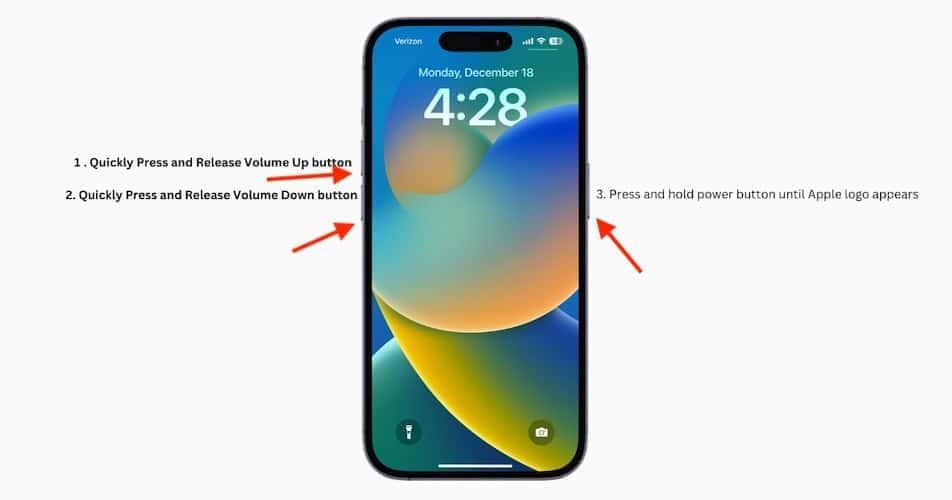
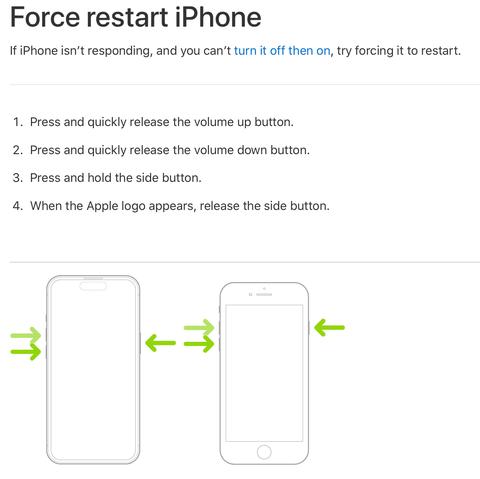
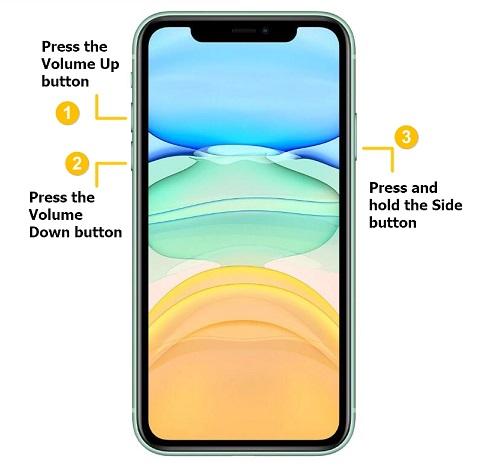
The exact force-restart procedure depends on the iPhone model.
Force Restart iPhone 8, iPhone SE (2nd Generation) and Later
For modern iPhones:
Step 1
Quickly press and release the Volume Up button.
Step 2
Quickly press and release the Volume Down button.
Step 3
Press and hold the Side button.
Step 4
Keep holding the Side button until the Apple logo appears.
Then release the button.
A force restart is particularly useful when the touchscreen is frozen and you cannot use the normal power-off option.
Force Restart iPhone 7 and iPhone 7 Plus
For these models:
- Press and hold the Volume Down button.
- At the same time, press and hold the Side button.
- Continue holding both buttons.
- Release them when the Apple logo appears.
Force Restart iPhone 6s and Earlier
For older iPhones:
- Press and hold the Home button.
- At the same time, press and hold the Side/Top button.
- Keep holding both buttons.
- Release them when the Apple logo appears.
How to Factory Reset an iPhone
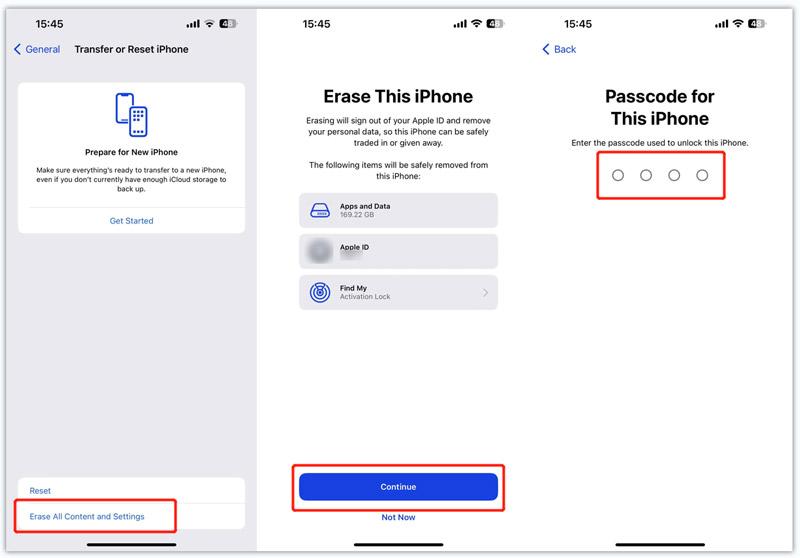
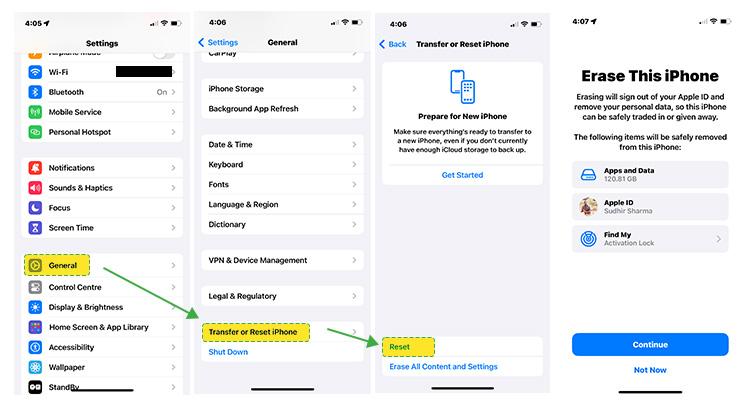
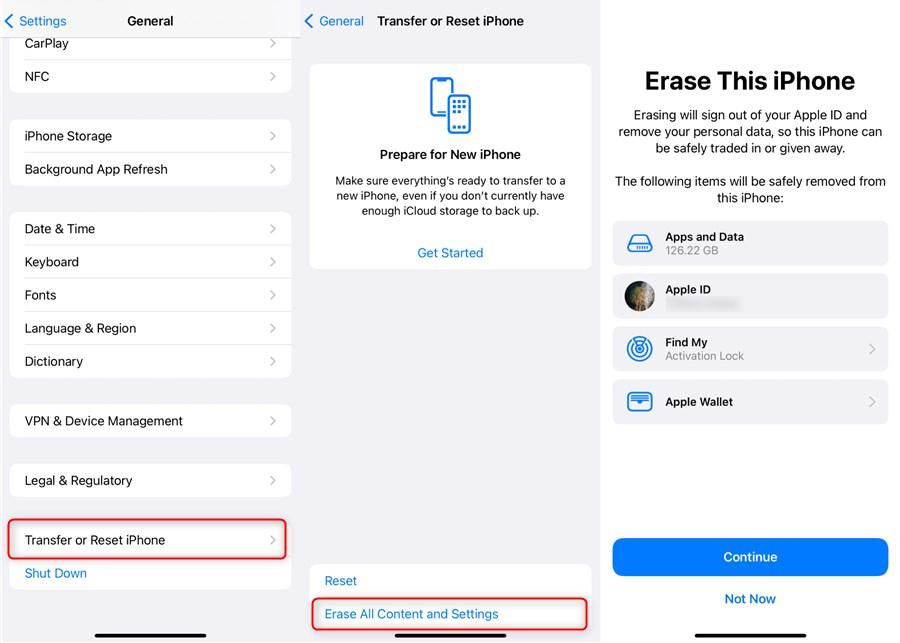
If your goal is to completely erase the iPhone, use the factory-reset option instead.
Step 1: Open Settings
Open the Settings app.
Step 2: Go to General
Tap General.
Step 3: Find Transfer or Reset iPhone
Scroll down and select Transfer or Reset iPhone.
Step 4: Select Erase All Content and Settings
Follow the instructions displayed on the screen.
Step 5: Confirm Your Identity
You may be asked for your device passcode or Apple Account credentials.
Step 6: Confirm the Erase
Once confirmed, the iPhone will begin the reset process.
Do not interrupt the device while it is erasing and restarting.
How to Hard Reset an Android Phone
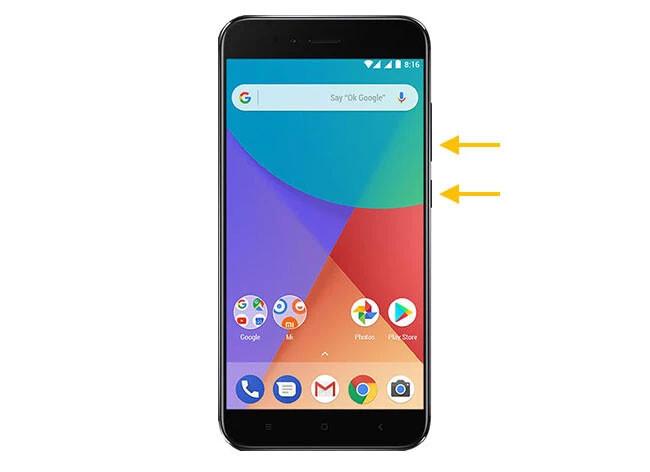
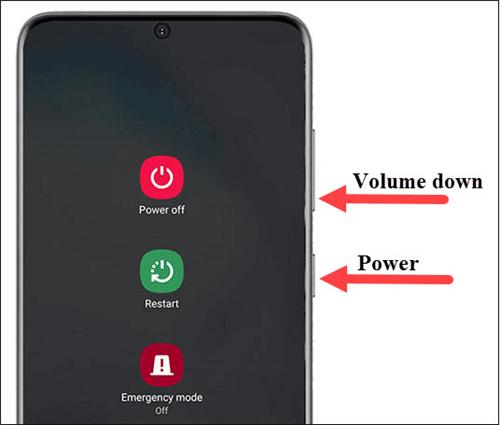
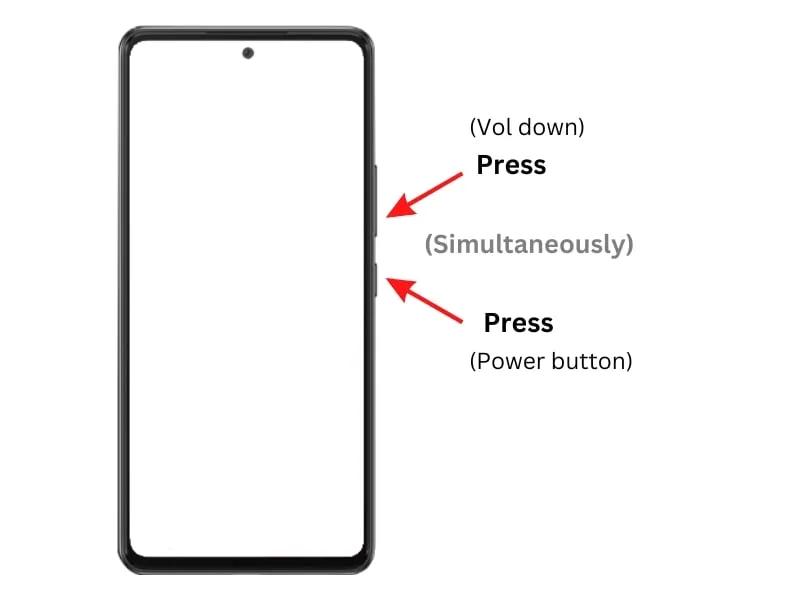
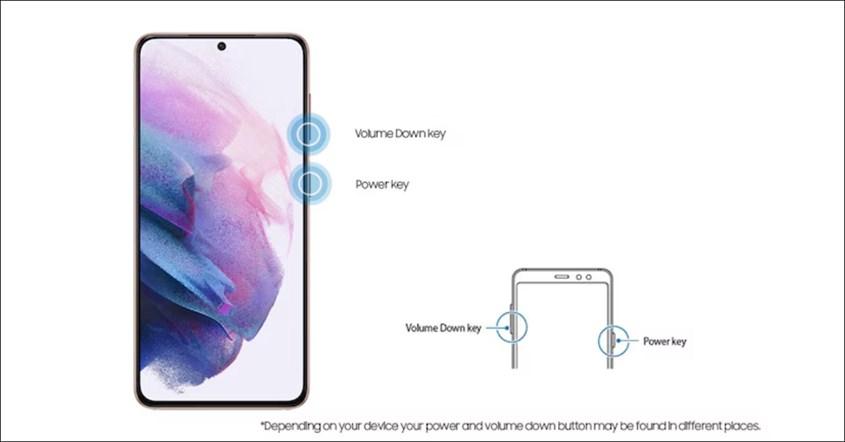
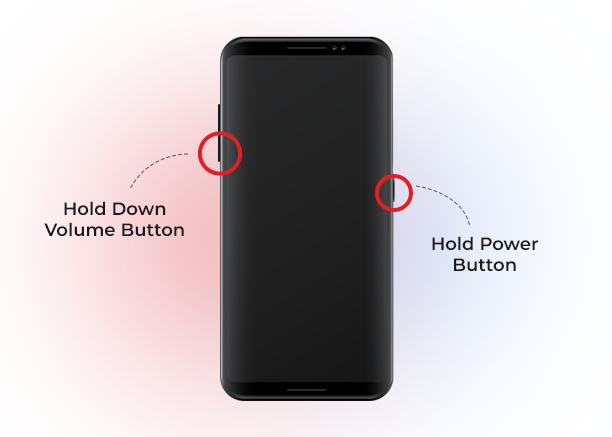
Android phones come from many manufacturers, so button combinations and menu names can vary.
The following method is commonly used for a force restart.
Force Restart Android
Step 1
Press and hold the Power button.
Step 2
Keep holding it for several seconds.
Step 3
If the phone does not respond, try holding Power + Volume Down together.
Step 4
Continue holding the buttons until the phone restarts or the manufacturer’s logo appears.
The exact combination can differ between Samsung, Google Pixel, OnePlus, Xiaomi, Motorola, Vivo, OPPO, Realme and other Android devices.
How to Factory Reset an Android Phone
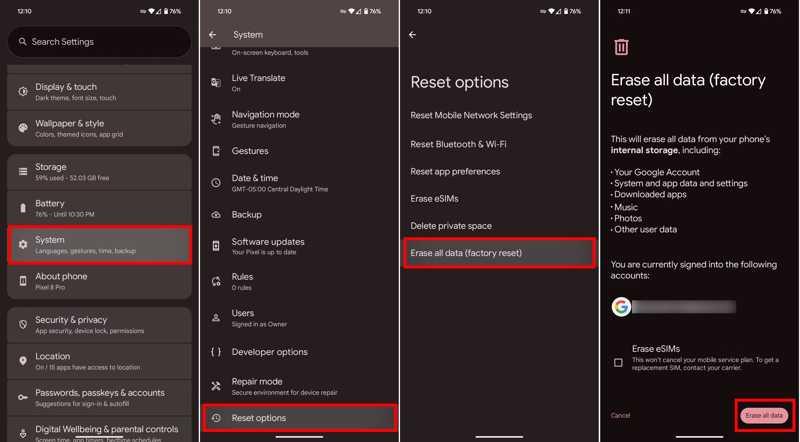
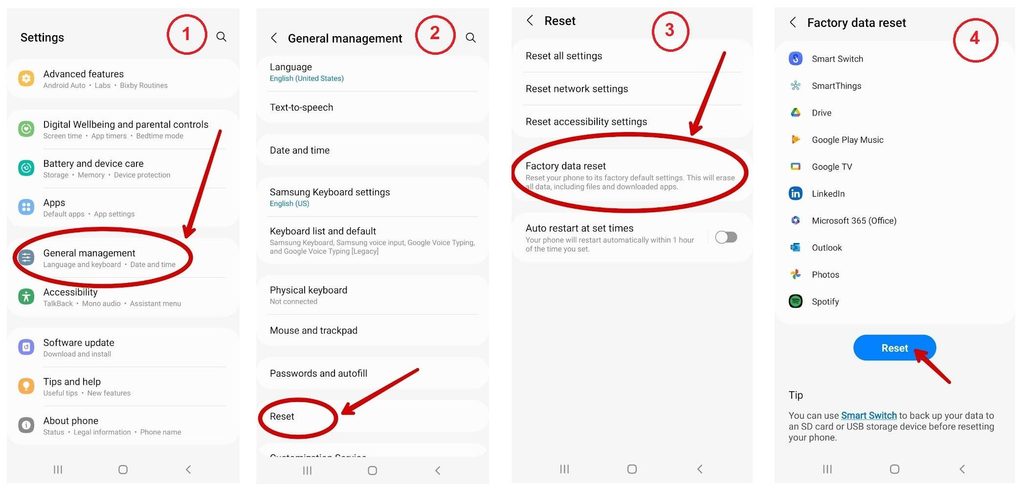
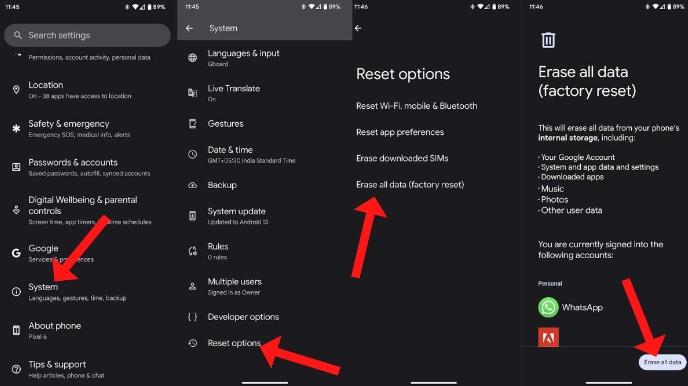
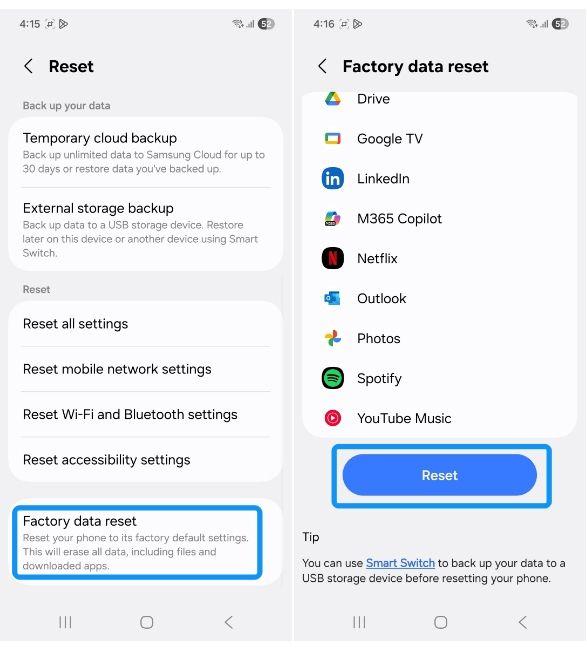
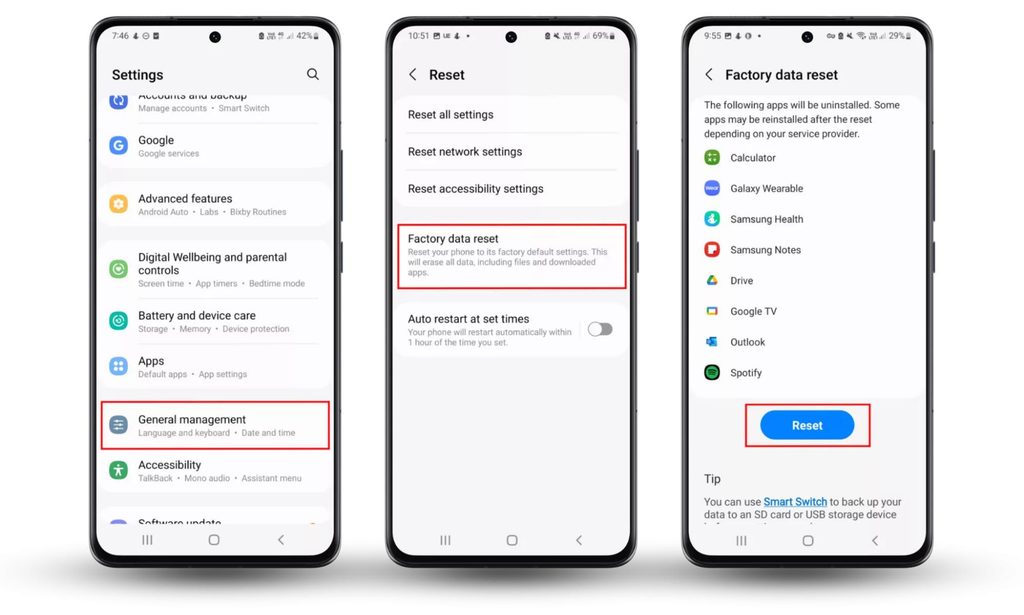
If the phone is working and you can access Settings, this is generally the easiest method.
Step 1: Open Settings
Open the Settings application.
Step 2: Find the Reset Option
Depending on the manufacturer, look for options such as:
- System
- General Management
- Additional Settings
- Backup & Reset
- Reset Options
Step 3: Select Factory Reset
Look for an option such as:
Factory Data Reset or Erase All Data.
Step 4: Review the Information
Android will normally show you the data that will be removed.
Read the warning carefully.
Step 5: Confirm
Enter your PIN, password, or pattern if requested.
Step 6: Start the Reset
Confirm the reset and allow the phone to complete the process.
What If an Android Phone Cannot Open Settings?
If the phone is completely frozen or cannot boot normally, recovery mode may provide another option.
However, recovery-mode instructions vary significantly between manufacturers and models.
A typical process may involve:
- Turning the phone off.
- Holding a specific button combination.
- Entering Recovery Mode.
- Selecting the appropriate reset option.
- Confirming the operation.
The exact button combination should be checked for your specific phone model before proceeding.
Do not randomly select recovery options if you are unsure what they do.
Tools You May Need for a Phone Reset
In many cases, you do not need special equipment to perform a basic force restart.
However, depending on the situation, these tools can be useful.
1. Original or Reliable Charging Cable
A good charging cable can help if the phone has a low battery or charging problem.
2. Compatible Charger
Make sure the phone has enough power before attempting a lengthy troubleshooting process.
3. Computer
A computer may be useful for:
- Creating backups
- Updating device software
- Restoring an iPhone
- Troubleshooting certain software problems
- Accessing manufacturer recovery tools
4. Manufacturer Software
Some phones provide official computer-based recovery or update utilities.
Always use software intended for your specific device model.
5. Professional Mobile Repair Equipment
If the phone still does not respond after a reset or force restart, the problem may not be software-related.
A professional technician may need diagnostic equipment to investigate:
- Battery problems
- Charging faults
- Display problems
- Power-management issues
- Motherboard faults
- Water or physical damage
Hard Reset vs Factory Reset: What’s the Difference?
This is one of the most important things to understand.
| Feature | Force Restart | Factory Reset |
|---|---|---|
| Restarts phone | Yes | Yes |
| Usually keeps personal data | Yes | No |
| Useful for frozen phone | Yes | Sometimes |
| Removes apps | No | Yes |
| Removes personal settings | No | Yes |
| Requires backup | Recommended | Strongly recommended |
| Suitable before selling phone | No | Yes |
A force restart is generally the safer first step when a phone is frozen.
A factory reset should be treated as a data-erasing operation.
What to Do If Your Phone Is Stuck on the Logo
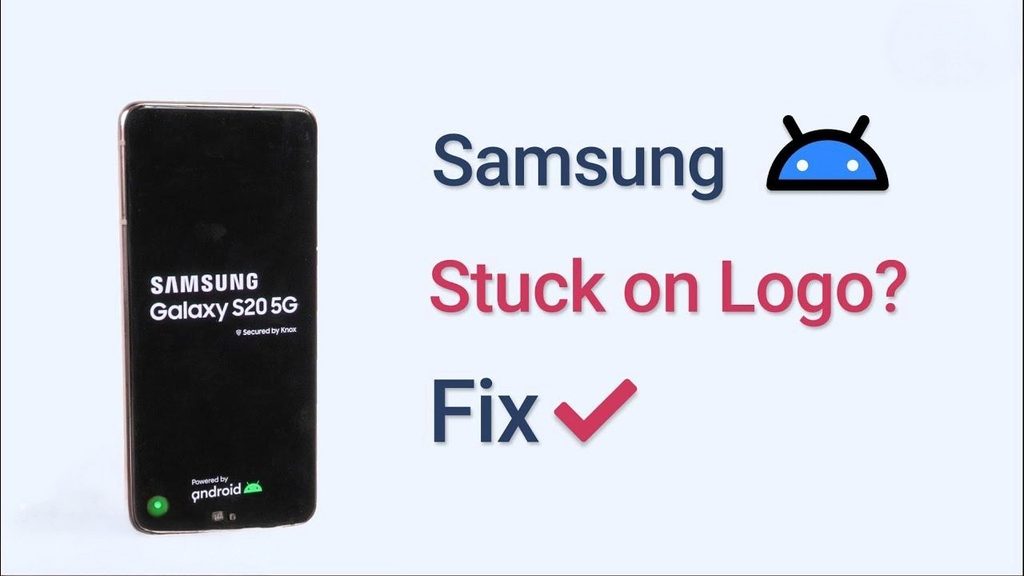
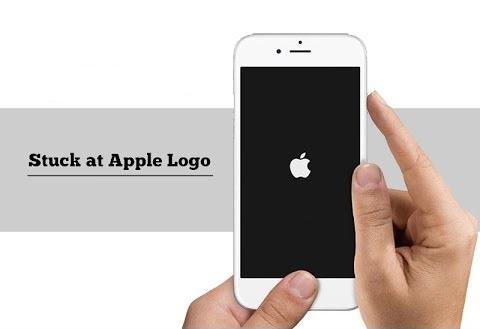
A phone stuck on the Apple, Samsung, Google, or another manufacturer logo may have a software or hardware issue.
Try these steps:
Step 1: Give It Some Time
If the device has just completed an update, it may take longer than usual to start.
Step 2: Try a Force Restart
Use the correct button combination for your model.
Step 3: Charge the Phone
Connect it to a reliable charger and allow it to charge.
Step 4: Check for Recovery Options
If the phone repeatedly returns to the logo, recovery or official restoration tools may be required.
Step 5: Consider Professional Diagnosis
If the phone still does not boot, do not repeatedly reset it without understanding the cause.
A hardware problem may be responsible.
Common Mistakes to Avoid When Resetting a Phone
A reset sounds simple, but mistakes can create unnecessary problems.
Mistake 1: Resetting Without a Backup
This is one of the biggest mistakes.
Once personal data has been erased, recovery may be difficult or impossible.
Mistake 2: Confusing Force Restart With Factory Reset
A force restart and factory reset are not the same thing.
Always check which procedure you are following.
Mistake 3: Ignoring Account Security
After a factory reset, device security features may require the original account credentials.
Mistake 4: Using Random Reset Software
Avoid downloading unknown tools that claim they can repair every phone.
Untrusted software can create additional security and software problems.
Mistake 5: Interrupting the Reset
Do not unnecessarily disconnect power or interfere with the device while it is performing a reset or software restoration.
Should You Hard Reset a Phone Before Selling It?
Yes, but do it correctly.
If you are selling or giving away your phone, first back up your information.
Then:
- Back up important data.
- Transfer your photos and files.
- Make sure you know your account credentials.
- Remove your SIM card.
- Remove a memory card if applicable.
- Sign out of accounts where required.
- Perform the appropriate factory reset.
- Wait for the device to return to its setup screen.
This helps protect your personal information and gives the next owner a clean starting point.
When a Hard Reset Does Not Fix the Problem
A reset cannot repair every phone problem.
If the phone continues to fail after software troubleshooting, the issue may involve hardware.
Possible causes include:
- Damaged battery
- Faulty charging port
- Broken display
- Water damage
- Damaged buttons
- Motherboard failure
- Power IC problems
- Storage failure
- Severe physical damage
In these cases, repeatedly resetting the phone may not help.
This is where professional diagnosis becomes important.
Expert Tip From Virani Telecom
At Virani Telecom, we recommend starting with the least destructive troubleshooting method first.
If your phone is frozen, try a force restart before considering a factory reset.
If you are planning a factory reset, back up your important information first.
And if the phone still refuses to work after software troubleshooting, do not assume that another reset will solve it. A professional inspection can help identify whether the problem is related to the battery, charging system, display, motherboard, or another hardware component.
Key Takeaways
Here are the most important points to remember:
- A force restart normally does not erase your personal data.
- A factory reset erases data from the device.
- The correct reset method depends on your phone model.
- Always back up important information before a factory reset.
- Keep your account credentials available.
- Do not use unknown third-party reset tools.
- A reset cannot fix every hardware problem.
- If the phone remains dead, frozen, or stuck after troubleshooting, consider professional mobile repair.
Conclusion
Learning how to hard reset a phone is a useful skill for every smartphone owner.
A force restart can often bring a frozen iPhone or Android phone back to life without deleting your personal information. A factory reset, on the other hand, is a more powerful option designed to erase the device and return it to a clean software state.
The key is knowing which reset you actually need.
Before performing a factory reset, protect your data, check your account details, and follow the instructions for your exact phone model. If resetting does not solve the problem, the issue may be hardware-related rather than software-related.
At Virani Telecom, the goal is simple: help you understand your phone problem before you spend money on unnecessary repairs.
Need Professional Mobile Repair Help?
Is your phone still frozen, not switching on, stuck on the logo, or refusing to work even after a reset?
Don’t keep trying random reset methods. Get your phone professionally checked.
Virani Telecom can help diagnose smartphone problems and identify the right repair solution.
Contact Virani Telecom today for professional mobile repair assistance.
Dahisar – HO
Shop No 2D Bldg No.2, Labh Darshan, D Wing, Chhatrapati Shivaji Rd, near Subway, Avdhut Nagar, Dahisar East, Mumbai, Maharashtra 400068
Borivali
Shop No.5, Thakkar Shopping Centre, Gyan Nagar, Mhatre Wadi, Borivali West, Mumbai, Maharashtra 400092
Kandivali
Shop No 103, Ground Floor, Raghuleela Mega Mall, Bus Depot, near Poisar, Kandivali, Jai Bhim Sanjay Nagar, Kandivali West, Mumbai, Maharashtra 400067
Frequently Asked Questions
1. Does a hard reset delete everything on a phone?
Not necessarily. If you mean a force restart, your personal data normally remains on the phone. If you mean a factory reset, your data and settings stored on the device will be erased.
2. How do I hard reset a frozen iPhone?
For most modern iPhones, quickly press and release Volume Up, quickly press and release Volume Down, then press and hold the Side button until the Apple logo appears.
3. How do I hard reset an Android phone?
For many Android phones, holding the Power button can force a restart. If that does not work, some models use Power + Volume Down. The exact method depends on the manufacturer and model.
4. Will a hard reset fix a slow phone?
A force restart may resolve a temporary software problem. A factory reset can sometimes help with serious software issues, but it should not be the first solution for every slow phone. Hardware, storage, battery, or software-update problems can also cause poor performance.
5. Should I back up my phone before a factory reset?
Yes. A factory reset removes personal data from the device. Back up important photos, videos, contacts, documents, messages, and other information before resetting.
6. What if my phone still does not work after a hard reset?
The problem may be hardware-related. Battery failure, charging problems, display damage, motherboard faults, water damage, or other component failures can prevent a phone from working even after a reset. Professional diagnosis may be necessary.
