




Common Mobile Software Issues for Beginners With Solutions
Have you ever opened your phone to make an important call, only to find that an app is not working? Has your smartphone suddenly become slow, started draining its battery, or stopped connecting to Wi-Fi?
These problems can be frustrating, especially when you depend on your phone for work, online payments, communication, education and everyday activities.
The good news is that many smartphone problems can be solved without replacing the phone or immediately visiting a repair shop. Sometimes, a simple restart, a settings change, an application update or a storage cleanup can make a difference.
However, not every problem has the same solution. A phone that freezes because of a software error needs a different approach from a phone with a damaged display or failing battery.
In this beginner-friendly guide from Virani Telecom, we will explore common mobile software issues found on modern Android smartphones and Apple iPhones. You will learn what causes these problems, how to troubleshoot them step by step, and when you should seek professional assistance.
Whether you use Samsung, Xiaomi, Redmi, Vivo, Oppo, Realme, OnePlus, Motorola, Google Pixel or an iPhone, this guide will help you understand your device better.
Important: Android menu names vary by brand and software version. If a setting is not available at the exact location mentioned below, use the Settings search bar to find it. Always back up important data before performing advanced troubleshooting.
What Are Mobile Software Issues?
Mobile software issues are problems related to a smartphone’s operating system, applications, settings, system files, network configuration or other digital components.
Your phone’s operating system manages its applications, memory, security, connectivity and many other functions. When something goes wrong with these components, the phone may not work as expected.
For example, an app may crash because of a software bug, or the phone may become slow because its storage is almost full.
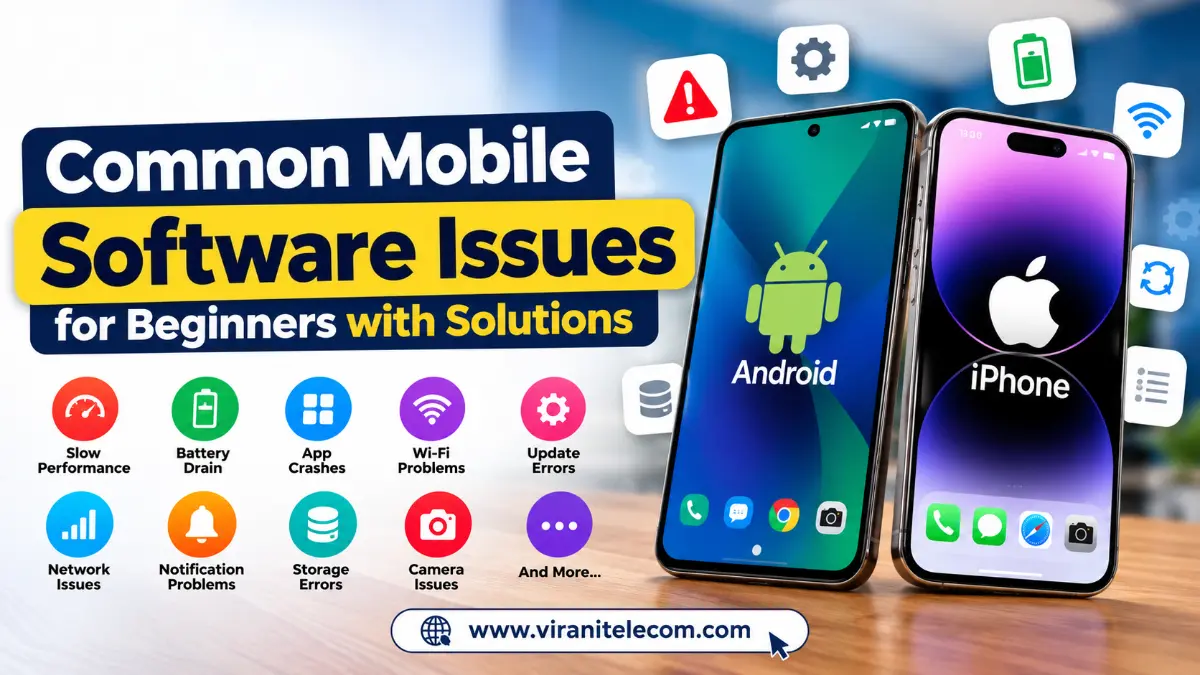
Common mobile software problems include:
- Slow performance and lag
- Apps crashing or refusing to open
- Phone freezing or restarting
- Battery draining quickly
- Software updates failing
- Phone getting stuck on the startup logo
- Wi-Fi, Bluetooth or mobile data problems
- Notifications not appearing
- Camera, microphone or keyboard apps malfunctioning
- Storage and application installation errors
- Account synchronization and login problems
- GPS, hotspot and network configuration issues
- Unwanted pop-ups or suspicious applications
Let’s look at these problems individually and learn how to troubleshoot them.
Part 1: Common Mobile Performance Problems
1. Mobile Phone Running Slow
A smartphone that once worked smoothly may begin taking longer to open applications, load websites or respond to taps.
Common causes
- Very little free storage
- Too many background processes
- Outdated applications
- A software bug
- An older device struggling with newer applications
How to fix it
Step 1: Restart your phone.
- Android: Open the Power menu and tap Restart.
- iPhone: Open the power-off menu, turn off the device, wait briefly, and turn it back on.
Step 2: Check available storage.
- Android: Settings → Storage.
- iPhone: Settings → General → iPhone Storage.
Remove unnecessary downloads and applications after checking that important files are backed up.
Step 3: Update applications.
- Android: Google Play Store → Profile → Manage apps & device.
- iPhone: App Store → Profile → Available Updates.
Step 4: Update the operating system.
Check the Software Update section in your phone’s settings.
If the phone remains slow, the cause could involve a problematic application, aging hardware or another system issue.
2. Phone Freezing or Hanging
A frozen phone stops responding to taps or button commands. Sometimes it recovers automatically; other times, it needs a restart.
Solution
First, wait briefly to see whether the phone recovers.
If it remains frozen, try the appropriate force-restart procedure.
iPhone with Face ID:
- Quickly press and release Volume Up.
- Quickly press and release Volume Down.
- Hold the Side button until the Apple logo appears.
Android: The restart combination depends on the manufacturer and model. Check the official instructions for your specific device before trying a button combination.
A force restart is different from a factory reset and normally does not erase personal data.
3. Phone Restarting Automatically
Unexpected restarts may be caused by software bugs, problematic applications, overheating, failed updates or hardware faults.
Solution
- Check whether the phone is overheating.
- Check available storage.
- Install available official app and system updates.
- If the problem started after installing an app, uninstall it and test again.
- Observe whether restarting happens during a particular activity.
On supported Android phones, Safe Mode can help determine whether a downloaded app is causing the problem. The procedure varies by manufacturer.
If the phone continues restarting, seek professional diagnosis rather than repeatedly resetting it.
4. Phone Stuck on the Logo or Boot Loop
A boot loop occurs when the phone repeatedly starts but cannot reach the home screen.
What you should do
- Disconnect unnecessary accessories.
- Check whether the battery has sufficient charge.
- Try the official force-restart procedure for your device.
- Recall whether the issue started after a failed update, system modification or physical damage.
- If the phone still cannot start, seek professional assistance.
Protect your data: Do not immediately factory reset or reinstall firmware. These actions may erase data or make recovery more difficult.
5. Touchscreen Responding Slowly
A touchscreen may respond slowly because of software lag, an application problem, overheating or physical screen damage.
Solution
- Clean and dry the screen.
- Temporarily remove a damaged or poorly fitted screen protector.
- Restart the phone.
- Check whether the problem occurs in every app or only one.
- Update the application or operating system if appropriate.
If the same screen area consistently fails to respond, especially after a drop, hardware inspection may be necessary.
Part 2: App and Application Problems
6. Apps Crashing or Closing Automatically
An app may open and close immediately, freeze during use or repeatedly display an error.
Android solution
- Open Settings → Apps.
- Select the problematic application.
- Tap Force stop.
- Open Storage & cache, if available.
- Tap Clear cache.
- Update the app from Google Play Store.
- Restart the phone.
If the problem continues, reinstall the app after ensuring important data is synchronized or backed up.
iPhone solution
- Close and reopen the app.
- Update it through the App Store.
- Restart the iPhone.
- Check for an iOS update.
- If necessary, reinstall the application.
Deleting an app can remove locally stored data. Check its backup and synchronization options first.
7. Apps Not Opening
Sometimes an application refuses to open at all.
Solution
- Restart the phone.
- Check your internet connection if the app requires one.
- Update the application.
- Check whether the service is experiencing an outage.
- Check available storage.
- Reinstall the app if necessary.
If several unrelated applications stop opening simultaneously, investigate the phone’s operating system and storage instead of reinstalling every app.
8. Apps Cannot Be Installed or Updated
Installation errors can occur because of insufficient storage, internet problems, account restrictions or application incompatibility.
Android
- Check Settings → Storage.
- Confirm that your internet connection works.
- Open Google Play Store.
- Check for app updates and installation errors.
- Restart the phone and try again.
iPhone
- Check Settings → General → iPhone Storage.
- Confirm that the App Store can access the internet.
- Check the app’s device and iOS requirements.
- Review any account or payment-related message shown by the App Store.
- Restart the phone and try again.
Do not download unofficial application packages from unknown websites to bypass installation errors.
9. Keyboard Not Working Properly
Your keyboard may freeze, disappear, lag or fail to enter text.
Android
- Restart the phone.
- Update your keyboard app.
- Open Settings → Apps.
- Select the keyboard application.
- Tap Force stop, if available.
- Clear its cache if the option is available.
iPhone
- Restart the iPhone.
- Check whether the problem occurs in multiple apps.
- Update iOS.
- If you recently installed a third-party keyboard, temporarily switch to the default Apple keyboard.
If the keyboard works in some apps but not others, the issue may be application-specific.
10. Apps Showing Errors or Loading Forever
An app may remain on a loading screen even though it opens normally.
Solution
- Test your internet connection.
- Switch between Wi-Fi and mobile data.
- Restart the app.
- Check whether the service is temporarily unavailable.
- Update the app.
- Sign out and sign in again only if you know your login details and can access any required verification method.
For banking, payment and other sensitive apps, use only official support channels.
Part 3: Battery, Charging and Temperature Problems
11. Battery Draining Too Fast
Fast battery drain may be related to background activity, poor network coverage, high screen brightness, software bugs or an aging battery.
Android solution
- Open Settings → Battery → Battery usage.
- Look for apps consuming unusually high amounts of power.
- Update the affected app.
- Restrict unnecessary background activity where appropriate.
- Reduce screen brightness if needed.
- Restart the phone and monitor battery usage.
iPhone solution
- Open Settings → Battery.
- Review battery usage by app.
- Update applications that show unusual activity.
- Review background activity and location permissions.
- Open Settings → Battery → Battery Health & Charging to check battery condition.
If the battery drains rapidly even when the phone is idle, further investigation may be necessary.
12. Phone Overheating
Phones can become warm during gaming, video recording, navigation or charging. Persistent or unusual heat, however, should not be ignored.
Solution
- Stop demanding applications.
- Move the phone away from direct sunlight.
- Disconnect the charger if the phone becomes unusually hot while charging.
- Let the phone cool naturally.
- Check for software updates after it cools down.
- Monitor whether the problem returns.
Never put a hot phone in a refrigerator or freezer. If the battery swells, the device emits smoke or there is a burning smell, stop using it and seek appropriate professional assistance.
13. Battery Percentage Is Not Updating Correctly
Sometimes the battery indicator appears stuck or changes unexpectedly.
Solution
- Restart the phone.
- Install available official software updates.
- Observe whether the percentage changes during normal use and charging.
- Check the battery health information on supported devices.
- Seek professional diagnosis if the problem continues.
Avoid repeatedly draining the battery to zero in an attempt to calibrate it. This is not a reliable fix for a faulty battery or charging circuit.
14. Charging Percentage Is Increasing Very Slowly
Slow charging can be caused by a low-power adapter, demanding background activity, high temperature, a damaged cable or a charging hardware issue.
Solution
- Use a compatible, reliable charger and cable.
- Check the charging port for visible debris without inserting metal objects.
- Close demanding apps.
- Allow the phone to cool if it is hot.
- Try a known-good compatible charger and cable.
If charging remains unusually slow with suitable accessories, have the charging system checked.
Part 4: Internet, Network and Connectivity Problems
15. Wi-Fi Connected but Internet Not Working
A Wi-Fi symbol does not always mean the internet connection is working.
Step-by-step solution
- Open a browser and test a website.
- Check whether other devices can use the same Wi-Fi.
- If all devices fail, restart the router and check with your internet provider.
- If only your phone fails, turn Wi-Fi off and on.
- Restart the phone.
- Forget the network and reconnect using the correct password.
iPhone: Settings → Wi-Fi → Tap the information button next to the network → Forget This Network.
Android: Open Wi-Fi or Internet settings, select the network and choose Forget.
If the problem continues, resetting network settings is an option, but it may remove saved networks and network configurations.
16. Mobile Data Not Working
Mobile data may stop working because of weak coverage, a disabled data setting, an inactive plan or incorrect network configuration.
Solution
- Make sure Mobile Data is enabled.
- Turn Airplane Mode on briefly, then turn it off.
- Check the signal strength.
- Confirm that your mobile plan is active.
- Restart the phone.
- Check whether mobile data is disabled for the affected app.
- Contact your carrier if the connection still fails.
If the phone displays No Service or SOS for an extended period, the cause may involve coverage, the SIM/eSIM, the carrier or the device.
17. Bluetooth Not Connecting
Bluetooth problems can affect headphones, smartwatches, car systems, speakers and other accessories.
Solution
- Charge the accessory.
- Turn Bluetooth off and on.
- Restart both devices.
- Bring them closer together.
- Remove the old pairing from the phone.
- Put the accessory into pairing mode.
- Pair it again.
If multiple known-working accessories fail to connect, further troubleshooting may be needed.
18. Mobile Hotspot Not Working
A mobile hotspot allows other devices to use your phone’s internet connection.
Solution
- Confirm that mobile data works on the phone itself.
- Enable Personal Hotspot or Mobile Hotspot.
- Check the hotspot password.
- Make sure the receiving device supports the selected Wi-Fi band.
- Disconnect unnecessary connected devices.
- Restart both devices.
- Confirm that your carrier plan supports hotspot use.
iPhone: Settings → Personal Hotspot.
Android: Settings → Network & internet or Connections → Hotspot & tethering or Mobile Hotspot.
Exact menu names depend on the device.
19. GPS or Location Not Working
Maps may show the wrong location, struggle to find your position or lose navigation.
Solution
- Enable Location Services.
- Allow the relevant app to access your location.
- Check whether precise location is enabled where required.
- Move to an area with a clearer view of the sky.
- Restart the app and phone.
- Update the app.
Indoor positioning and poor satellite reception can affect accuracy even when the phone is working correctly.
20. Calls or SMS Not Working Properly
Call and message problems can be caused by network coverage, SIM/eSIM activation, account restrictions, messaging settings or temporary software issues.
Solution
- Check mobile signal strength.
- Turn Airplane Mode on and off.
- Restart the phone.
- Check whether your SIM/eSIM is active.
- Confirm that the correct messaging app is being used.
- Contact your mobile operator if calls or messages continue to fail.
For iMessage or RCS issues, also check internet connectivity, service activation and the recipient’s supported messaging service.
Part 5: Camera, Sound and Other Phone Functions
21. Camera App Not Opening
A camera app may crash or show a black screen because of a software issue, permissions, low storage or hardware damage.
Android
- Restart the phone.
- Open Settings → Apps → Camera.
- Tap Force stop.
- Clear the camera app cache if available.
- Check storage.
- Install official system updates.
iPhone
- Close and reopen Camera.
- Restart the iPhone.
- Check available storage.
- Install available iOS updates.
- Test the camera again.
If the camera remains black after a drop or liquid exposure, professional inspection may be needed.
22. Microphone Not Working
If people cannot hear you during calls or voice recordings, check whether the issue is software-related.
Solution
- Disconnect Bluetooth headsets.
- Test the microphone in another suitable app.
- Check microphone permissions for the affected app.
- Restart the phone.
- Update the application and operating system.
If the microphone fails in several apps, the problem may involve the microphone hardware or another system component.
23. Speaker or Phone Sound Not Working
Solution
- Increase the media or call volume.
- Check Silent mode and Do Not Disturb settings.
- Disconnect Bluetooth audio devices.
- Play audio from more than one app.
- Restart the phone.
- Check whether sound works through compatible headphones.
If only the built-in speaker fails, it may require hardware inspection.
24. Notifications Not Appearing
Missing notifications can cause you to overlook important messages, reminders or work updates.
Android
- Open Settings → Notifications → App notifications.
- Select the affected app.
- Enable its notifications.
- Check Do Not Disturb.
- Review battery restrictions if notifications arrive late.
iPhone
- Open Settings → Notifications.
- Select the affected app.
- Enable Allow Notifications.
- Check alert style and notification delivery settings.
- Review Settings → Focus.
If notifications are missing from every app, check internet connectivity and system settings as well.
25. Fingerprint or Face Unlock Not Working
Biometric unlocking may fail because of sensor obstructions, changed conditions, software issues or hardware faults.
Solution
- Clean the sensor or camera area.
- Try your device passcode.
- Restart the phone.
- Check whether a software update is available.
- Follow the manufacturer’s instructions to re-register your fingerprint or face if necessary.
Do not remove your existing biometric setup until you know your passcode and understand how to register it again.
26. Apps or Websites Showing Certificate and Security Errors
Sometimes a browser or app refuses to connect securely.
Solution
- Check that the phone’s date and time are correct.
- Enable automatic date and time where available.
- Check your internet connection.
- Update the browser or application.
- If using a VPN or filtering service, temporarily check whether it is affecting the connection.
Do not bypass security warnings or enter passwords on websites that cannot establish a trusted connection.
27. Account Synchronization Not Working
Contacts, calendars, emails or photos may stop syncing with a cloud account.
Solution
- Check the internet connection.
- Confirm that you are signed in to the correct account.
- Check synchronization settings.
- Make sure the account has available cloud storage if required.
- Restart the app.
- Check whether the service is experiencing an outage.
Before signing out of an account, confirm that you know the password and can complete any two-factor authentication requirements.
28. Apps Showing Unwanted Pop-Ups or Redirects
Unexpected advertisements, browser redirects or security warnings can sometimes be caused by suspicious applications, unwanted browser notifications or misleading websites.
Android
- Review recently installed applications.
- Uninstall suspicious apps you recognize as unnecessary.
- Check browser notification permissions.
- Open Google Play Store → Profile → Play Protect and run an available scan.
- Update Android and your browser.
iPhone
- Close suspicious browser tabs.
- Review Safari website notification and browsing settings where available.
- Remove unknown profiles only after verifying what they are and why they exist.
- Update iOS.
- Avoid installing apps or configuration profiles from untrusted sources.
Never call a number displayed in a suspicious pop-up or provide banking passwords to an unknown support contact.
29. VPN or Private DNS Causing Connection Problems
VPNs and private DNS settings can sometimes interfere with websites or applications.
Solution
- Check whether the internet works without the VPN.
- Disconnect the VPN temporarily for testing.
- If you use Private DNS on Android, check its configuration.
- Restart the affected app.
- Contact the VPN provider if the issue persists.
Only change settings you understand, and reconnect to your trusted privacy service when testing is complete.
30. Backup or Restore Problems
A backup may fail because of insufficient cloud storage, a weak connection, account issues or an incompatible restore process.
Solution
- Check the available cloud storage.
- Use a stable internet connection.
- Confirm that you are signed in to the correct account.
- Check the backup status and any displayed error message.
- Keep the phone connected to power during a large backup or restore when appropriate.
Do not erase the original phone until you have verified that important data is safely backed up and accessible.
31. Phone Date and Time Are Incorrect
Incorrect date and time settings can cause login, certificate, synchronization and messaging problems.
Solution
iPhone: Settings → General → Date & Time → Set Automatically.
Android: Settings → System → Date & time, or search Settings for Date and time. Enable automatic date and time if available.
Restart the affected app and check whether the problem is resolved.
32. Storage Full and Apps Cannot Save Files
When storage is nearly full, a phone may struggle to save photos, download files or install updates.
Solution
- Open the phone’s storage settings.
- Identify the largest files and applications.
- Back up important photos and documents.
- Remove unnecessary downloads.
- Review large media files in messaging apps.
- Empty Recently Deleted or Trash where appropriate.
Do not delete unfamiliar system files or use unknown cleaning applications.
Part 6: Security and Software Maintenance
33. Suspicious Apps or Possible Malware
Unusual pop-ups, unfamiliar apps, excessive battery usage and unexpected browser redirects can indicate unwanted software. These symptoms do not automatically prove that a phone is infected.
Android
- Review installed applications.
- Remove suspicious apps you do not recognize or trust.
- Run Google Play Protect.
- Install official security updates.
- Review app permissions.
- Change affected account passwords from a trusted device if you suspect account compromise.
iPhone
- Update iOS.
- Review installed apps and remove unfamiliar ones after checking their purpose.
- Review Settings → General → VPN & Device Management for profiles you do not recognize.
- Check Apple Account security if you suspect unauthorized access.
Do not install an unknown app that claims it can remove every virus instantly.
34. Software Update Failing
Updates may fail because of insufficient storage, network issues, low battery, temporary service problems or device compatibility.
Solution
- Connect to a reliable Wi-Fi network.
- Check available storage.
- Ensure the phone has sufficient charge.
- Restart the phone.
- Try the official update process again.
iPhone: Settings → General → Software Update.
Android: Search Settings for Software Update or System Update.
If the update repeatedly fails, note the exact error message and seek device-specific guidance.
35. Factory Reset or Restore Problems
A factory reset removes personal information and settings from the device. It should not be the first solution for every software problem.
Before resetting
- Back up important data.
- Confirm that your photos and contacts are safely synchronized.
- Make sure you know your account credentials.
- Check whether two-factor authentication is accessible.
- Understand the manufacturer’s reset procedure.
A reset may help with certain persistent software problems, but it will not repair a physically damaged component.
How to Troubleshoot Any Mobile Software Problem Safely
If you are a beginner and do not know where to start, follow this general troubleshooting order.
Step 1: Identify the Problem
Write down exactly what happens.
For example, does an app crash immediately, or does it stop working only when you open a particular feature?
Step 2: Find Out When It Started
Ask yourself whether the problem began after an app installation, software update, settings change or physical incident.
Step 3: Restart the Phone
A restart is a sensible first step for many temporary software glitches.
Step 4: Check Storage and Connectivity
Low storage or an unreliable internet connection can cause several different problems.
Step 5: Update the Affected App
If only one app is affected, update it before changing wider system settings.
Step 6: Check Relevant Settings
For example, check permissions for camera problems, notifications for missing alerts, and Wi-Fi settings for connectivity issues.
Step 7: Protect Your Data
Back up important files before advanced troubleshooting.
Step 8: Stop if the Problem Persists
Avoid repeated factory resets, unofficial firmware installations or random repair tools. Seek professional assistance when the cause is unclear.
When Should You Contact Virani Telecom?
Basic troubleshooting can resolve many everyday smartphone problems. However, some issues require specialist diagnosis.
Consider professional assistance if:
- Your phone repeatedly restarts or remains stuck on the logo.
- System updates repeatedly fail.
- Several applications and system functions stop working.
- The phone becomes unusually hot.
- The device stops responding even after a restart.
- Your data may be at risk.
- The problem started after liquid exposure or physical damage.
- You suspect a hardware component is causing the software symptoms.
Virani Telecom provides mobile repair and troubleshooting services for smartphone users. A proper diagnosis can help determine whether a problem is software-related, hardware-related or caused by a combination of factors.
Key Takeaways
- Common mobile software issues can affect both Android phones and iPhones.
- Restarting the phone is a useful first step for many temporary problems.
- App crashes may be resolved by updating, restarting or reinstalling the affected app.
- Battery drain can result from background activity, software issues or battery degradation.
- Wi-Fi, Bluetooth and mobile data problems should be tested systematically.
- Always back up important information before advanced troubleshooting.
- Factory resets and firmware installations can create data-loss risks.
- Android settings vary by manufacturer, so check instructions for your specific model.
- Persistent boot loops, overheating and repeated system failures need proper diagnosis.
- Avoid promising yourself that every problem is software-related; hardware can produce similar symptoms.
Conclusion
Modern smartphones are powerful devices, but even the best phones can experience software problems. A slow screen, crashing application, missing notification or unreliable internet connection can interrupt your day and create unnecessary stress.
The good news is that many common mobile software issues can be investigated through simple, safe troubleshooting. By understanding the problem, checking the relevant settings and following the correct steps, you can often identify the cause without making unnecessary changes to your device.
However, the key is knowing when to stop. A factory reset, unofficial firmware or an unknown repair tool can make a problem worse, particularly when important personal data is involved.
Start with basic troubleshooting, keep your device updated, back up your information and use official support resources whenever possible.
If your Android phone or iPhone continues to malfunction, professional diagnosis can help you identify the next step.
Need Help With Your Android or iPhone?
Don’t let a mobile software problem disrupt your day.
If your phone is slow, stuck on the logo, restarting repeatedly, experiencing app crashes or facing other persistent problems, contact Virani Telecom for mobile repair and troubleshooting assistance.
Get the problem checked properly before trying risky fixes or replacing your device unnecessarily.
Virani Telecom — Your Mobile, Our Expertise.
Dahisar – HO
Shop No 2D Bldg No.2, Labh Darshan, D Wing, Chhatrapati Shivaji Rd, near Subway, Avdhut Nagar, Dahisar East, Mumbai, Maharashtra 400068
Borivali
Shop No.5, Thakkar Shopping Centre, Gyan Nagar, Mhatre Wadi, Borivali West, Mumbai, Maharashtra 400092
Kandivali
Shop No 103, Ground Floor, Raghuleela Mega Mall, Bus Depot, near Poisar, Kandivali, Jai Bhim Sanjay Nagar, Kandivali West, Mumbai, Maharashtra 400067
Frequently Asked Questions
1. What are the most common mobile software issues?
The most common mobile software issues include slow performance, app crashes, freezing, battery drain, software update failures, boot loops, storage errors, Wi-Fi problems, Bluetooth issues, notification failures and account synchronization problems.
2. Can I fix mobile software problems at home?
Many basic problems can be investigated at home. Restarting the phone, updating applications, checking storage and reviewing relevant settings are useful first steps. Persistent startup failures, security concerns and repeated system crashes may require professional assistance.
3. Why does my Android phone keep crashing?
An Android phone may crash because of problematic applications, insufficient storage, software bugs, overheating or hardware faults. Update your apps, check storage and restart the device. If several system functions continue failing, seek further diagnosis.
4. How do I fix software problems on an iPhone?
Start by restarting your iPhone and updating the affected application. Check available storage, review relevant settings and install official iOS updates. If the issue continues, consult Apple Support or a qualified repair professional before performing a factory reset.
5. Will a factory reset fix all mobile software issues?
No. A factory reset may resolve certain persistent software problems, but it does not repair damaged hardware or guarantee a solution. It also erases personal information. Back up your data and confirm your account credentials before resetting your device.
6. When should I take my phone to Virani Telecom?
Consider professional assistance if your phone repeatedly restarts, remains stuck on the startup logo, cannot complete updates, becomes unusually hot or continues malfunctioning after safe troubleshooting. A technician can help identify whether the cause is software-related or hardware-related.

Chetan
October 29, 2026Wow 👌
Excellent Awesome 👌
Extraordinary Superb 👍