







iPhone Software Repair Guide for Beginners
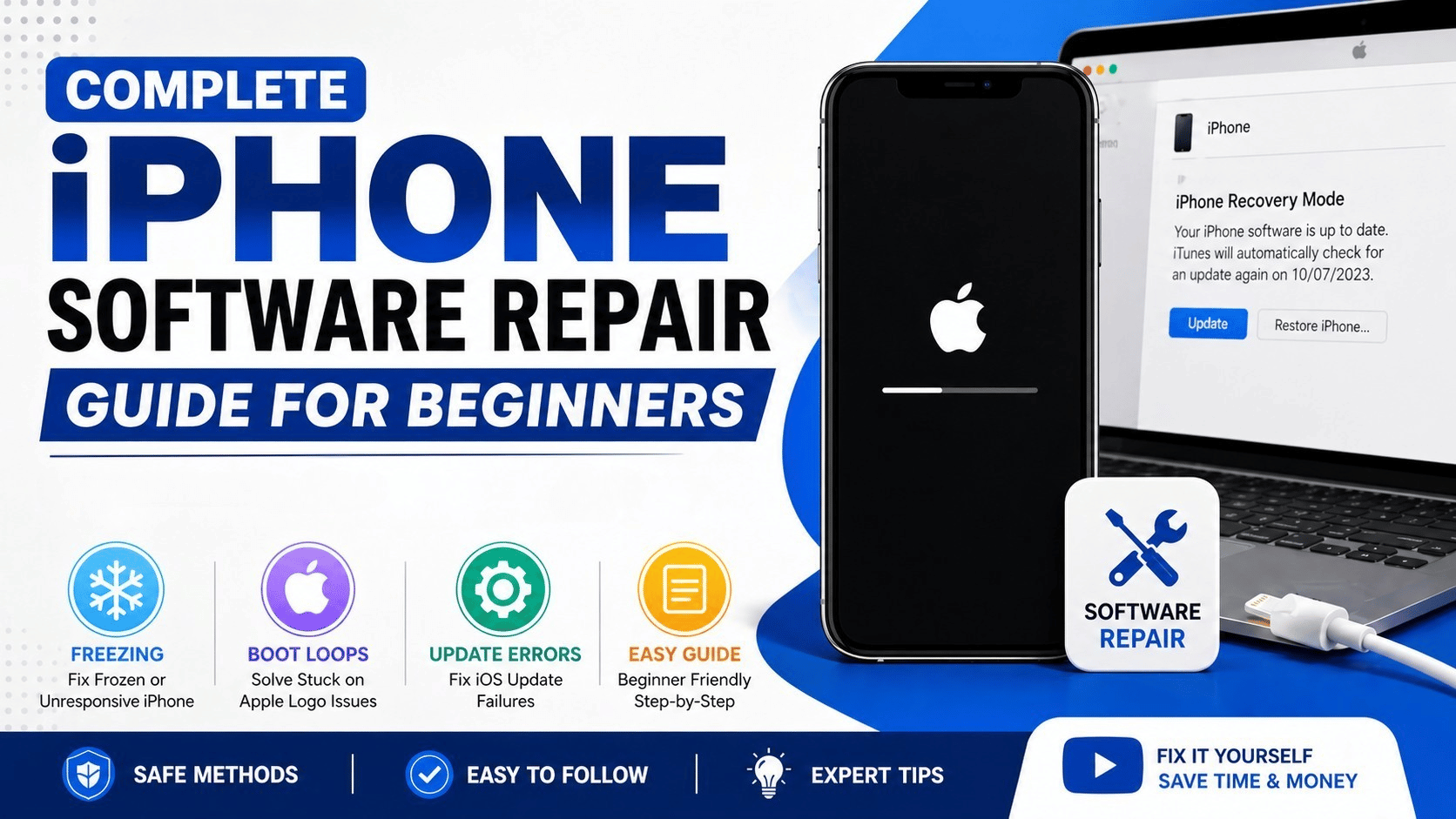
iPhone Software Repair: If your Apple iPhone is stuck on the Apple logo, freezing randomly, or showing update errors — you’re dealing with a software issue, not necessarily a hardware failure.
The good news? Most of these problems can be fixed at home using the right steps.
In this detailed beginner guide, Virani Telecom explains everything about iPhone Software Repair, from basic troubleshooting to advanced methods like Recovery Mode and DFU Mode — in simple English.
📖 What is iPhone Software Repair?
iPhone Software Repair means fixing problems related to the iOS system without changing any physical parts of the phone.
These issues usually happen due to:
- Failed updates
- Software bugs
- App conflicts
- Storage overload
- Jailbreak or unofficial modifications
👉 Unlike hardware issues (like broken screens), software issues can often be fixed using tools like iTunes or system reset options.
⚠️ Common iPhone Software Issues (Explained in Detail)
🔹 1. Freezing or Lagging iPhone
Symptoms:
- Screen stops responding
- Apps take time to open
- Phone becomes slow
Causes:
- Low storage
- Too many background apps
- Outdated iOS
🔹 2. Boot Loop (Stuck on Apple Logo)
Symptoms:
- Apple logo appears and disappears repeatedly
- Device restarts again and again
Causes:
- Failed update
- Corrupted iOS files
- Incomplete restore
🔹 3. iPhone Update Errors
Symptoms:
- “Unable to install update”
- Update stuck at progress bar
Causes:
- Poor internet connection
- Not enough storage
- Apple server issues
🔹 4. Apps Crashing Frequently
Symptoms:
- Apps close automatically
- App not opening
Causes:
- App bugs
- Incompatible iOS version
- Low RAM/storage
🛠️ Basic Fixes You Should Try First (Step-by-Step)
These are safe and beginner-friendly methods.
✔️ 1. Restart Your iPhone
Why it works:
Restart clears temporary bugs and refreshes the system.
Steps:
- Press Power + Volume button
- Slide to power off
- Turn it back on
✔️ 2. Force Restart (For Frozen iPhone)
Steps:
- Press Volume Up → Volume Down → Hold Power button
- Release when Apple logo appears
👉 This is useful when screen is not responding.
✔️ 3. Free Up Storage
Steps:
- Go to Settings → General → iPhone Storage
- Delete:
- Unused apps
- Large videos/photos
👉 Keep at least 5–10GB free space.
✔️ 4. Update iOS
Steps:
- Settings → General → Software Update
- Install latest version
👉 Updates fix bugs and improve performance.
🔧 Advanced iPhone Software Repair Methods
If basic fixes fail, use these advanced solutions.
🔄 Recovery Mode (Step-by-Step Guide)
Recovery Mode allows you to reinstall iOS safely.
✅ When to Use:
- iPhone stuck on Apple logo
- Update failed
- Device not starting
🧾 Steps:
- Connect iPhone to computer
- Open iTunes (Windows) or Finder (Mac)
- Force restart your iPhone
- You’ll see Recovery Mode screen
- Choose:
- Update → keeps data
- Restore → erases data

⚠️ Important Tip:
Always try Update first to avoid data loss.
⚡ DFU Mode (Deep-Level Repair Guide)
DFU Mode is the most advanced repair method.
✅ When to Use:
- Recovery Mode fails
- Severe software corruption
- iPhone not turning on
🧾 Steps (General Idea):
- Connect iPhone to computer
- Press specific button combination
- Screen remains completely black
- iTunes detects device in recovery
- Click Restore
⚠️ Warning:
- DFU will erase all data
- Use only when necessary
🚫 How to Fix iPhone Update Errors
🔹 Problem 1: Update Not Installing
Fix:
- Check Wi-Fi
- Restart device
- Try again
🔹 Problem 2: Stuck on Update Screen
Fix:
- Force restart
- Use Recovery Mode
🔹 Problem 3: Error Code in iTunes
Fix:
- Update iTunes
- Change USB cable
- Try another computer
💡 Pro Tips to Avoid Software Issues
- Always update iOS regularly
- Avoid installing unknown apps
- Keep storage free
- Restart phone once a week
- Use original charger & cable
🏪 When to Visit a Professional Repair Center
You should visit experts like Virani Telecom if:
- iPhone stuck after multiple repairs
- DFU mode not working
- Data recovery needed
- Phone overheating
👉 Professionals use advanced tools for safe repair.
🎯 Conclusion (iPhone Software Repair)
iPhone software problems may look serious, but most of them are fixable at home if you follow the right steps.
Start with basic fixes, move to Recovery Mode, and use DFU only if needed.
👉 Still facing issues?
Visit Virani Telecom – Mumbai’s trusted mobile repair experts
📲 Watch full step-by-step repair videos on YouTube
💬 Comment your problem — we’ll help you fix it!
❓ FAQs (iPhone Software Repair)
1. What causes an iPhone boot loop?
Mostly failed updates or corrupted system files.
2. Can I fix iPhone software without a computer?
Yes, basic fixes can be done without a computer, but advanced repair needs one.
3. Is DFU mode safe?
Yes, but it erases all data. Use carefully.
4. How long does iPhone Software Repair take?
- Basic fix: 10–20 minutes
- Advanced: 30–60 minutes
5. Will I lose data during iPhone Software Repair?
Only if you choose “Restore” or use DFU Mode.

Chetan Virani
April 29, 2026Wow