




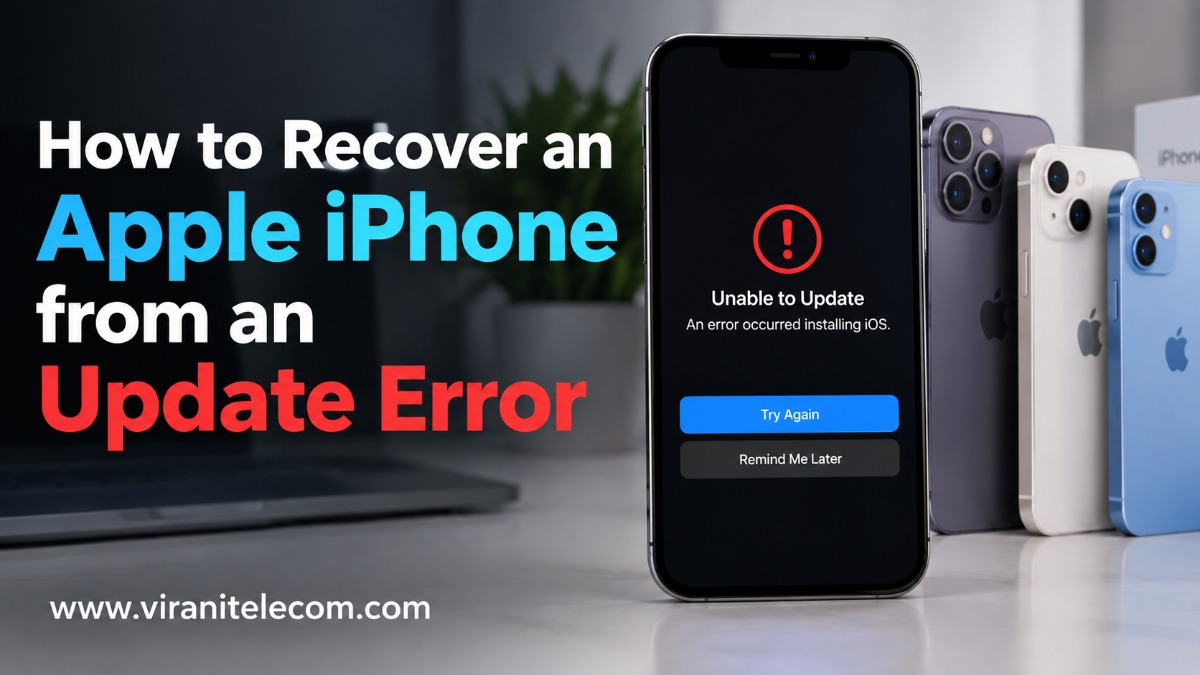
How to Recover an Apple iPhone from an Update Error
Updating your iPhone should normally be a simple process. You connect to Wi-Fi, download the latest iOS update, and let your iPhone do the rest.
But sometimes things do not go as planned.
Your iPhone may get stuck on the Apple logo, show a progress bar that does not move, restart repeatedly, display an error message, or refuse to complete the update. In some cases, the screen may even show “Connect to computer.”
If you are facing an iPhone Update Error, don’t panic.
The good news is that many iOS update problems can be fixed without immediately visiting a repair shop. You can start with simple solutions and move to recovery mode only if necessary.
This guide from Virani Telecom explains how to recover an Apple iPhone from an update error, including the iPhone 11, iPhone 12, iPhone 13, iPhone 14, iPhone 15, iPhone 16, and iPhone 17 Series.
Let’s go step by step.
What Is an iPhone Update Error?
An iPhone Update Error happens when your iPhone cannot successfully download, install, or complete an iOS update.
You may notice symptoms such as:
- iPhone stuck on the Apple logo
- iPhone stuck on the update progress bar
- iPhone repeatedly restarting
- iPhone showing a “Connect to computer” screen
- iPhone update failing during installation
- Error messages appearing on a Mac or PC
- iPhone not being recognized by your computer
- iPhone entering Recovery Assistant or recovery mode
Apple notes that update problems can happen because of insufficient storage, internet problems, update-server connectivity, compatibility issues, or an update that does not complete correctly.
The important thing is not to rush into erasing your iPhone.
Start with the least destructive solution first.
Which iPhone Models Can Follow This Guide?
The recovery methods in this article apply to recent iPhone models, including:
- iPhone 11 Series
- iPhone 12 Series
- iPhone 13 Series
- iPhone 14 Series
- iPhone 15 Series
- iPhone 16 Series
- iPhone 17 Series
Because these models use the same basic recovery-mode button sequence, the steps are very similar across the range.
Why Does an iPhone Update Fail?
There can be several reasons behind an iOS update problem.
1. Not Enough Storage
Major iOS updates require free storage space. If your iPhone is almost full, the update may not download or install correctly.
2. Poor Internet Connection
A weak or unstable Wi-Fi connection can interrupt the download.
3. Update Server Problems
Your iPhone needs to communicate with Apple’s software update servers. Network, firewall, or server communication problems can sometimes cause errors.
4. Software Glitch
Occasionally, an existing software problem can interfere with the update.
5. Computer or USB Connection Problems
If you are updating through a Mac or Windows PC, an outdated system, faulty cable, USB port, or security software can interfere with the process.
6. Hardware Problems
If the problem continues after software troubleshooting, there could be an issue with the iPhone’s hardware.
How to Fix an iPhone Update Error
Before using recovery mode, try the simpler solutions below.
Step 1: Keep Your iPhone Connected to Power
Connect your iPhone to a reliable charger.
An iOS update can take some time, especially when downloading and installing a major software version.
Avoid disconnecting the iPhone during an active update unless the device is clearly frozen or an error has appeared.
Step 2: Check Your Wi-Fi Connection
Make sure your iPhone is connected to a stable Wi-Fi network.
If your internet connection is unreliable:
- Open Settings.
- Tap Wi-Fi.
- Connect to a stable network.
- Try the software update again.
If possible, avoid public or unstable Wi-Fi networks when performing a major iOS update.
Step 3: Check iPhone Storage
Low storage is one of the common reasons an iPhone may have trouble installing an update.
Go to:
Settings → General → iPhone Storage
Check how much free space is available.
If your storage is almost full, consider removing:
- Large videos
- Unused applications
- Old downloads
- Duplicate photos
- Large message attachments
Do not delete important personal files without checking them first.
Step 4: Delete the Downloaded iOS Update
If the update has already downloaded but refuses to install, deleting the update and downloading it again can help.
Go to:
Settings → General → iPhone Storage
Look for the downloaded iOS update.
Tap it and select Delete Update.
Then go back to:
Settings → General → Software Update
Download the update again.
Apple recommends this approach when an iPhone repeatedly fails to install an available update.
How to Force Restart an iPhone 11 to iPhone 17
If your iPhone is frozen or not responding normally, a force restart may help.
For iPhone 11 through the newer Face ID iPhone models:
Follow these steps:
- Quickly press and release Volume Up.
- Quickly press and release Volume Down.
- Press and hold the Side button.
- Keep holding until you see the Apple logo.
- Release the Side button.
A force restart does not normally erase your personal data.
If the iPhone starts normally afterward, check whether the iOS update completed.
What If the iPhone Is Still Stuck?
If your iPhone remains stuck on the Apple logo, repeatedly restarts, or shows the Connect to computer screen, you may need to use Recovery Mode.
Recovery Mode allows your computer to communicate with the iPhone and reinstall its software.
Apple recommends recovery mode for situations such as an iPhone remaining on the Apple logo for several minutes without a progress bar, a computer not recognizing the device, or an iPhone repeatedly entering Recovery Assistant.
How to Put iPhone 11 to iPhone 17 in Recovery Mode
The following process applies to iPhone 11, 12, 13, 14, 15, 16, and 17 models.
Step 1: Connect Your iPhone
Connect the iPhone to your computer using a reliable USB cable.
Step 2: Open the Correct Software
On a Mac, open Finder.
On a Windows PC, use the Apple Devices app. Make sure your computer software is up to date.
Step 3: Enter Recovery Mode
With the iPhone connected:
- Quickly press and release Volume Up.
- Quickly press and release Volume Down.
- Press and hold the Side button.
- Keep holding the Side button.
- Do not release it when you see the Apple logo.
- Continue holding until the Connect to computer screen appears.
Your computer should then recognize that the iPhone is in recovery mode.
Update or Restore: Which Option Should You Choose?
This is one of the most important parts of the recovery process.
When your computer gives you the option to Update or Restore, understand the difference.
Choose “Update” First
If you have not already tried updating through recovery mode, choose Update first.
The Update option attempts to reinstall iOS while keeping your personal data. Apple specifically recommends trying Update before Restore in applicable recovery situations.
This should generally be your first choice if you want to protect the data stored on your iPhone.
Remember:
Update = Try to reinstall iOS without erasing your data.
When Should You Choose “Restore”?
If Update fails and your iPhone still cannot start, Restore may be necessary.
However, there is an important warning:
Restore erases the iPhone and reinstalls iOS.
Afterward, you will need to set up the iPhone again and restore your data from an available backup.
Therefore, do not choose Restore casually if you have important data that is not backed up.
What If the Software Download Takes Too Long?
When using recovery mode, your computer may need to download the iOS software.
If the download takes more than about 15 minutes, the iPhone may leave the Connect to computer screen.
Don’t panic.
Let the software download finish, then put the iPhone back into recovery mode and continue the process. Apple provides this guidance for recovery-mode restores.
Fix Common iPhone Update Error Messages
Different error numbers can point to different causes.
Errors 9, 4005, 4013 and 4014
These errors can occur when the iPhone disconnects during an update or restore, or when the computer cannot properly communicate with the device.
Try:
- Updating your Mac or PC.
- Updating Apple Devices or iTunes where applicable.
- Force restarting the iPhone.
- Using another USB cable.
- Trying another USB port.
- Trying another computer.
- Trying another reliable network.
Apple recommends these steps for these particular errors.
Error 14
Error 14 can occur during update or restore processes and may be associated with an iPhone becoming stuck on the Apple logo or entering recovery mode.
If you encounter it, first try updating the device rather than immediately choosing Restore.
Network-Related Errors
Some errors can happen when your computer cannot communicate correctly with Apple’s software update servers.
Try:
- Checking your internet connection.
- Restarting your router.
- Updating your Mac or PC.
- Checking firewall or security software.
- Trying another network.
- Trying another computer.
Apple notes that firewalls, proxies, network settings, and other security measures can interfere with communication with its update servers.
What If Your Computer Does Not Recognize the iPhone?
This is another common problem during iPhone recovery.
Try these steps:
Check the Cable
Use a good-quality, compatible USB cable.
Try Another USB Port
Connect the iPhone directly to the computer instead of using a USB hub.
Update Your Computer
Make sure macOS is updated.
On Windows, make sure the Apple Devices app is up to date.
Restart Everything
Restart:
- Your iPhone
- Your Mac or PC
- Your router, if necessary
Then connect the iPhone again.
Apple also recommends trying another computer if the problem continues.
What Is Recovery Assistant on iPhone?
Newer iPhones may sometimes display Recovery Assistant when the device experiences startup problems or repeated crashes.
Recovery Assistant can download a software package designed to help resolve startup issues.
If Recovery Assistant appears, follow the onscreen instructions and select Continue when appropriate.
The process requires a Wi-Fi connection and may take several minutes.
If the problem continues after Recovery Assistant, Apple recommends checking that the iPhone is running the latest software and using recovery mode if necessary.
How to Protect Your Data Before an iOS Update
The best way to reduce stress during an iPhone update is to prepare before starting.
Back Up Your iPhone
Before installing a major iOS update, create a backup whenever possible.
You can use:
- iCloud
- A Mac
- A Windows PC
A current backup can make recovery much easier if you eventually need to restore your iPhone.
Keep Your iPhone Charged
Do not begin a major update with an extremely low battery.
Use Reliable Wi-Fi
A stable internet connection helps prevent interrupted downloads.
Keep Enough Storage Available
Check your iPhone storage before installing a large update.
Avoid Interrupting the Update
Once installation has started, give your iPhone time to complete the process.
When Should You Contact a Professional?
Sometimes an iPhone Update Error cannot be solved through normal software troubleshooting.
Consider getting professional help if:
- Recovery mode does not work.
- Your iPhone repeatedly returns to the recovery screen.
- Your computer cannot recognize the iPhone after trying another cable and computer.
- A button is damaged or stuck.
- The iPhone has suffered liquid or physical damage.
- The iPhone repeatedly fails during restoration.
- You have important data and are unsure whether Restore will erase it.
Apple states that service may be required when an iPhone cannot be updated or restored using recovery mode, or when recovery mode cannot be used because a button is damaged or stuck.
Important Things You Should NOT Do
When your iPhone is stuck during an update, avoid making the situation worse.
Don’t immediately erase your iPhone
Try Update before Restore when possible.
Don’t use random firmware files
Use official Apple software and trusted tools.
Don’t repeatedly disconnect the iPhone
Avoid interrupting an active recovery or restore process unnecessarily.
Don’t ignore error messages
Write down the exact error number or message. It can help identify the cause.
Don’t panic
An iPhone stuck during an update does not automatically mean the phone is permanently damaged.
A Simple Recovery Checklist
If your iPhone has an update problem, follow this order:
1. Connect the iPhone to power.
↓
2. Check Wi-Fi and internet connectivity.
↓
3. Check available storage.
↓
4. Try downloading the update again.
↓
5. Force restart the iPhone.
↓
6. Update your Mac or Windows PC.
↓
7. Connect the iPhone directly using a reliable USB cable.
↓
8. Enter Recovery Mode if necessary.
↓
9. Choose Update before Restore whenever possible.
↓
10. Use Restore only when necessary and after considering your backup situation.
↓
11. Contact a professional if the problem continues.
Key Takeaways
Here are the most important points to remember:
- An iPhone Update Error does not always mean your iPhone is damaged.
- Check Wi-Fi, storage, power, and software updates first.
- A force restart can help when the iPhone is frozen.
- iPhone 11 through iPhone 17 models can use the same basic recovery-mode button sequence.
- Use Recovery Mode when normal troubleshooting does not work.
- Choose Update before Restore when appropriate.
- Restore erases the iPhone, so check your backup situation first.
- A different cable, USB port, computer, or network can sometimes solve update errors.
- If recovery mode fails repeatedly, professional service may be needed.
Conclusion
Seeing your iPhone stuck on the Apple logo or showing an update error can be stressful, especially when the phone contains important photos, contacts, messages, and other personal information.
The good news is that many iOS update problems can be resolved with a few careful steps.
Start with the simple solutions. Check your connection, storage, power, and software. If your iPhone remains stuck, try a force restart and then Recovery Mode. Most importantly, remember the difference between Update and Restore.
When possible, try Update first because it attempts to reinstall iOS without erasing your personal data. If Restore becomes necessary, make sure you understand that it erases the iPhone and that you have a backup available if possible.
And if the problem continues, don’t keep experimenting with risky fixes.
Get help from a trusted professional who can properly diagnose the issue and protect your valuable data.
Need Help With Your iPhone?
Still facing an iPhone Update Error on your iPhone 11, iPhone 12, iPhone 13, iPhone 14, iPhone 15, iPhone 16, or iPhone 17?
Virani Telecom is here to help.
Bring your iPhone to Virani Telecom for reliable guidance and professional assistance with iPhone software and device-related problems.
Don’t let an update error ruin your day. Get your iPhone checked and get back to using it with confidence.
Dahisar – HO
Shop No 2D Bldg No.2, Labh Darshan, D Wing, Chhatrapati Shivaji Rd, near Subway, Avdhut Nagar, Dahisar East, Mumbai, Maharashtra 400068
Borivali
Shop No.5, Thakkar Shopping Centre, Gyan Nagar, Mhatre Wadi, Borivali West, Mumbai, Maharashtra 400092
Kandivali
Shop No 103, Ground Floor, Raghuleela Mega Mall, Bus Depot, near Poisar, Kandivali, Jai Bhim Sanjay Nagar, Kandivali West, Mumbai, Maharashtra 400067
Frequently Asked Questions
1. How do I fix an iPhone Update Error?
Start by checking your Wi-Fi connection, available storage, battery level, and software version. If the update still fails, try downloading the update again. If your iPhone is stuck, use a force restart and, if necessary, Recovery Mode.
2. Will Recovery Mode erase everything on my iPhone?
Entering Recovery Mode itself does not automatically erase your data. However, choosing Restore reinstalls iOS and erases the iPhone. If you have not already tried Update, Apple recommends trying Update first when appropriate.
3. How do I put an iPhone 11 into Recovery Mode?
Connect the iPhone to a computer, quickly press and release Volume Up, quickly press and release Volume Down, then press and hold the Side button until the Connect to computer screen appears.
The same basic procedure applies to iPhone 12, 13, 14, 15, 16 and 17 models.
4. What should I do if my iPhone is stuck on the Apple logo after an update?
First, give the device some time if an update is actively processing. If it remains stuck, try a force restart. If the problem continues, connect the iPhone to a computer and use Recovery Mode. Apple recommends recovery mode for devices that remain on the Apple logo for several minutes without a progress bar.
5. Why is my iPhone update failing even though I have internet?
A working internet connection is only one part of the update process. Low storage, update-server communication problems, computer software, security software, USB connection issues, or other system problems can also interfere with an update.
6. When should I get professional help for an iPhone update problem?
Get professional help if your iPhone cannot be updated or restored using Recovery Mode, repeatedly shows errors, has physical damage, or has a damaged or stuck button. If your data is important and you are unsure whether to use Restore, professional assistance is also a sensible choice.

Chetan
September 12, 2026Wow Excellent Extraordinary Superb Awesome 👌 👏 👍 😍